Skip to content
FansyMe Help
  • Help & Support
  • Back to FansyMe
  • EnglishExpand
    • Deutsch (German)
FansyMe Help

General Questions

  • Who can use FansyMe?
  • Is the registration free?
  • Why do I need to confirm my email?
  • Does FansyMe have an app?
  • Safe Content & Content Categorisation
  • Report an account or content
  • I have a complaint
  • Payment Processor
  • Security
    • What to Do If Your Account Is Compromised
    • Two-Factor-Authentication
  • Privacy
    • Privacy & Terms of Service

Fan Questions

  • How can I pay?
  • Is it safe to pay on FansyMe.com?
  • Why do I have to verify my age?
  • How to make a video or voice call?
  • Content not received
  • Payments
    • Wallet
    • Cancel a subscription
    • Refunds

Creator Questions

  • How do I become a creator?
  • I have signed up, what now?
  • Which subscription prices can I set?
  • How to post content?
  • Schedule Posts Automatically
  • Sharing Content
  • What are collections?
  • Co-Creator Tagging and Release Forms
  • Earnings and Payouts
    • Do I get paid in USD or EUR?
    • How can I get paid?
    • Minimum Withdrawal
    • Where is my payment?
    • Cancel Payout Request
    • Payout Percentage
    • Tax ID & TIN Requirements
    • VAT Deduction Eligibility
  • Account
    • Change Username
    • I can not login to FansyMe
    • Avatar/Header Images
    • Deleting your account
  • Privacy
    • How do I block countries from accessing my profile?
  • Streaming & Lovense
    • How to Start Live Streaming / Multistream (Desktop)
    • How to Stream & Multistream on Mobile (Easy Guide)
    • Private Video and Voice Calls
    • Live Stream Tokens Explained
    • I have camera / microphone permission problems
    • Can I play music or games?
    • How to connect your Lovense Toy
  • Shop
    • How to Add Items
    • Receiving and Shipping Orders
    • When do I get paid?
  • Promotion & Vouchers
    • How do I get more subscribers?
    • How to promote your FansyMe Account
    • Vouchers & Discounts
View Categories
  • Home
  • Docs
  • Creator Questions
  • Streaming & Lovense
  • How to Stream & Multistream on Mobile (Easy Guide)

How to Stream & Multistream on Mobile (Easy Guide)

This post is also available in: Deutsch (German)

This guide shows you how to go live on FansyMe using your phone, step by step. Take your time. Follow each step in order.

Step 1 — Get the App #

If you have an Android phone (Samsung, etc.):

  1. Open the Play Store app.
  2. Type “SplitCam” in the search box.
  3. Tap Install.

If you have an iPhone:

  1. Open the App Store app.
  2. Type “SplitCam” in the search box.
  3. Tap Get.

After it installs, open the app. It will ask to use your camera and microphone. Tap Allow for both. You need this to go live.

Step 2 — Get Your FansyMe Stream Info #

  1. Log in to your FansyMe account (on your phone browser or the FansyMe app).
  2. Click on Go Live
  3. Select the Settings (Gear Icon) Icon next to the Menu
  4. Click Get OBS Key
  5. You will see two things:
    • Stream URL (a web address)
    • Stream Key (a long code, like a password)
  6. Copy both. You will need them in the next step.

⚠️ Important: Never show your Stream Key to anyone. It is like a password. If someone else has it, they can stream on your channel.
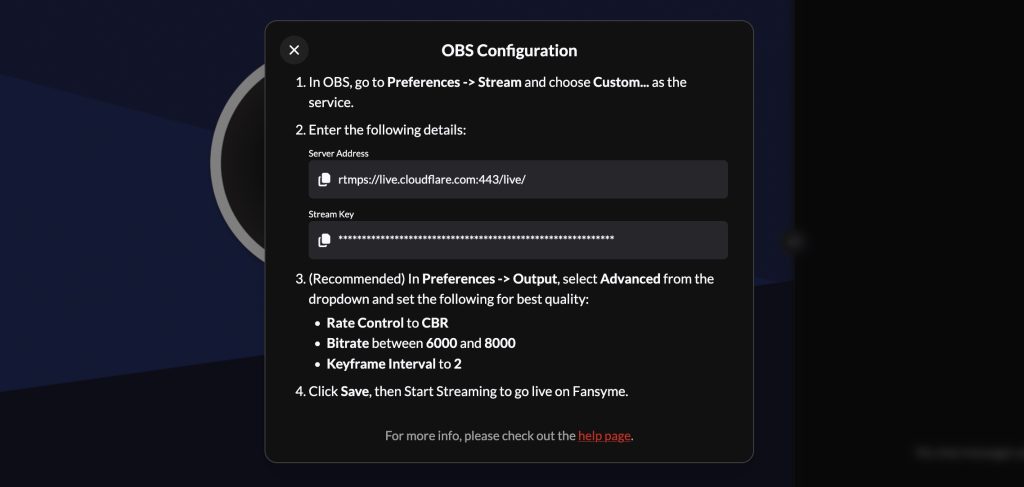
FansyMe dashboard showing Stream URL and Stream Key fields
Find your Stream URL and Stream Key in your FansyMe dashboard.

Step 3 — Add FansyMe Inside SplitCam #

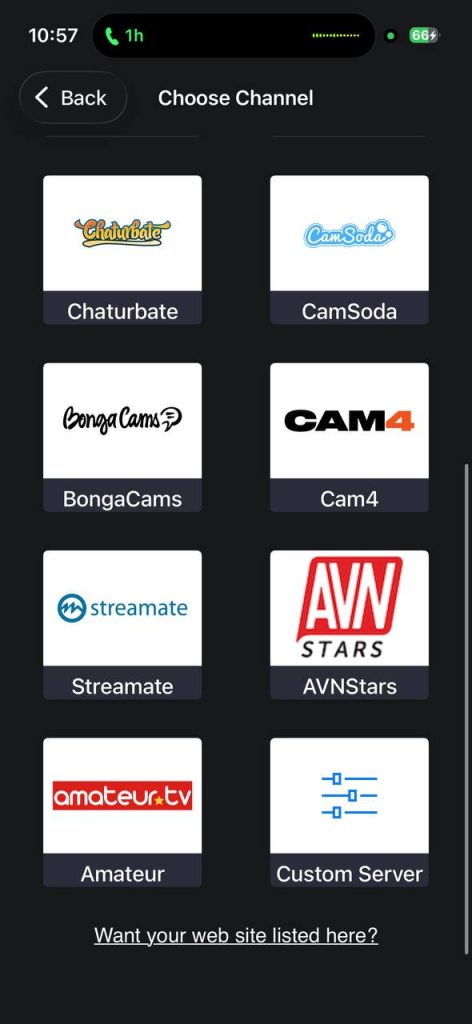
FansyMe is not one of the big, famous platforms (like Chaturbate or CamSoda), so it does not have its own picture/logo button in the app. This is normal — it just means you add it a slightly different way, using something called Custom Server. It works exactly the same as the other platforms, just one extra step.

  1. In SplitCam, go to Channel Settings.
  2. Tap Choose Channel.
  3. At the bottom of the list, tap Custom Server.
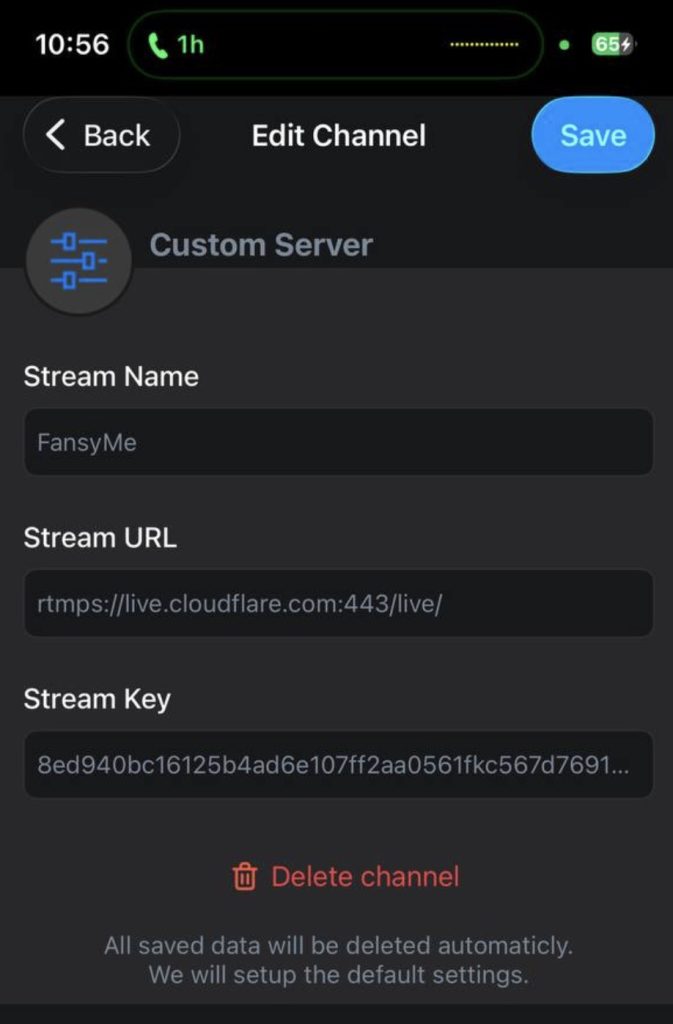
  4. Fill in the boxes:
    • Stream Name: type FansyMe (this is just a nickname so you remember it)
    • Stream URL: paste the Stream URL you copied from FansyMe
    • Stream Key: paste the Stream Key you copied from FansyMe
  5. Tap Save.

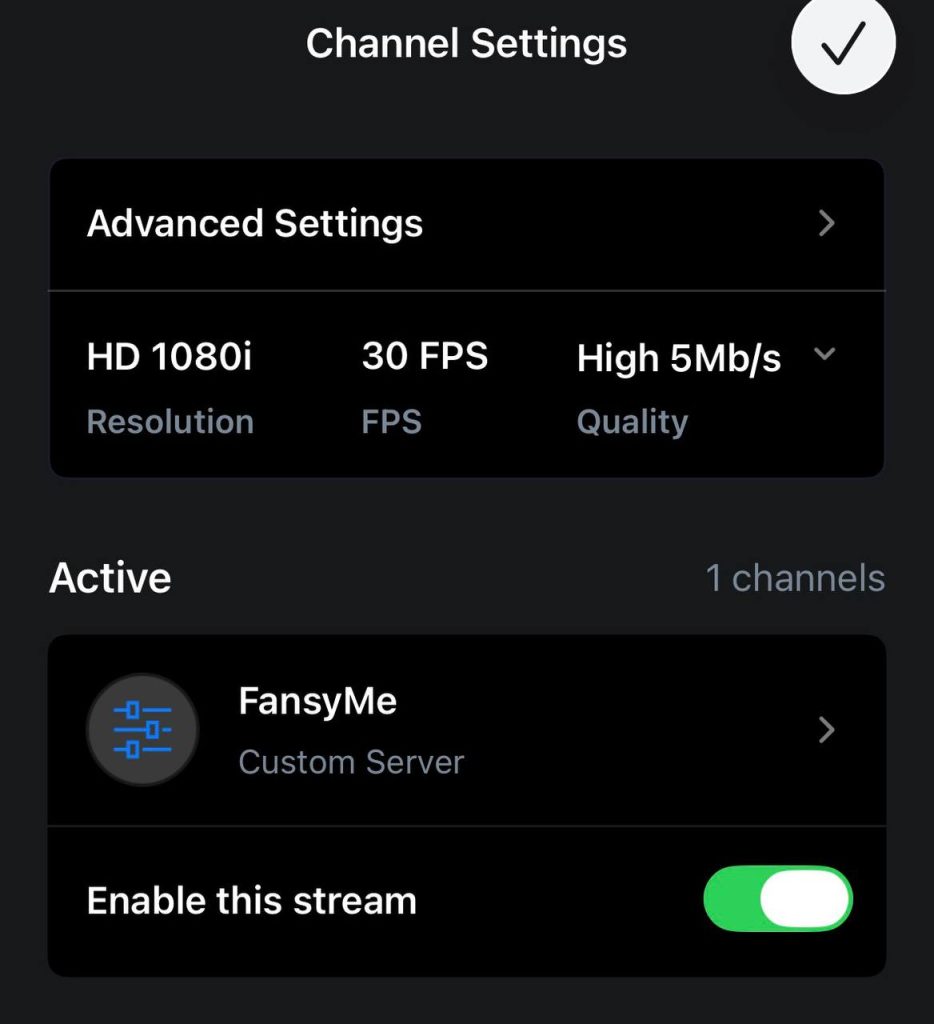
Now “FansyMe” will show up on your Channel Settings screen, under Active.
Blank new screen without any channels showing Add New Channel.
Click on add new channel to add FansyMe.
Choose Channel screen with Custom Server option highlighted
Tap Custom Server since FansyMe isn’t listed by name yet.
Screenshot

Step 4 — Set Your Video Quality #

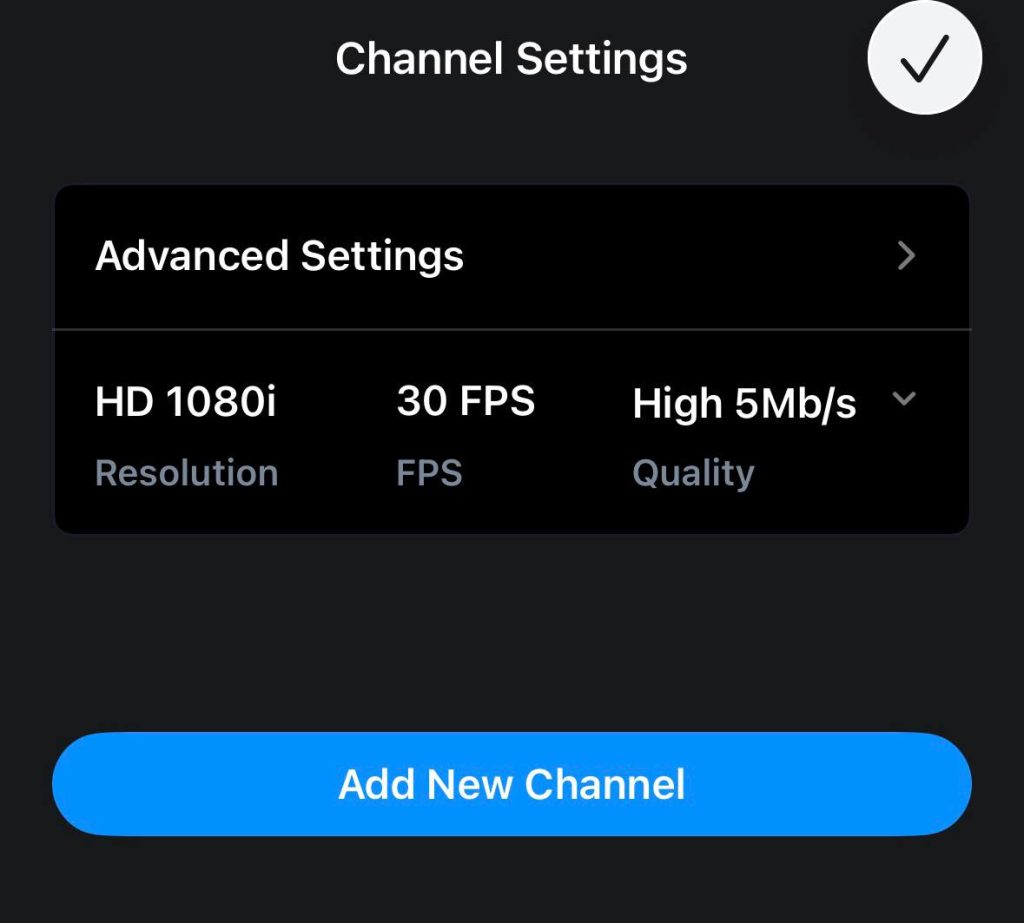
On the Channel Settings screen, you will see three boxes. Set them like this:

SettingWhat to choose
ResolutionHD 1080i
FPS30 FPS
Quality5 Mb/s (if your internet is slow, choose a lower number)

Channel Settings screen showing Resolution, FPS, and Quality dropdowns
Set Resolution to HD 1080i, FPS to 30, and Quality to 5 Mb/s.

Step 5 — One Very Important Setting #

  1. Tap Advanced Settings.
  2. Find the box called Keyframe Interval.
  3. Check that it says 2. Most phones already have this set to 2 by default — you usually don’t need to change it. If it shows a different number, change it to 2.

⚠️ This step is very important. Always check it, even if you think it’s already right. If it’s wrong, your stream might connect but show no video.

Also set:

  • Profile Level: Baseline
  • BitRate Mode: Average
  • Restream Server: Detect automatically

Tap Save.
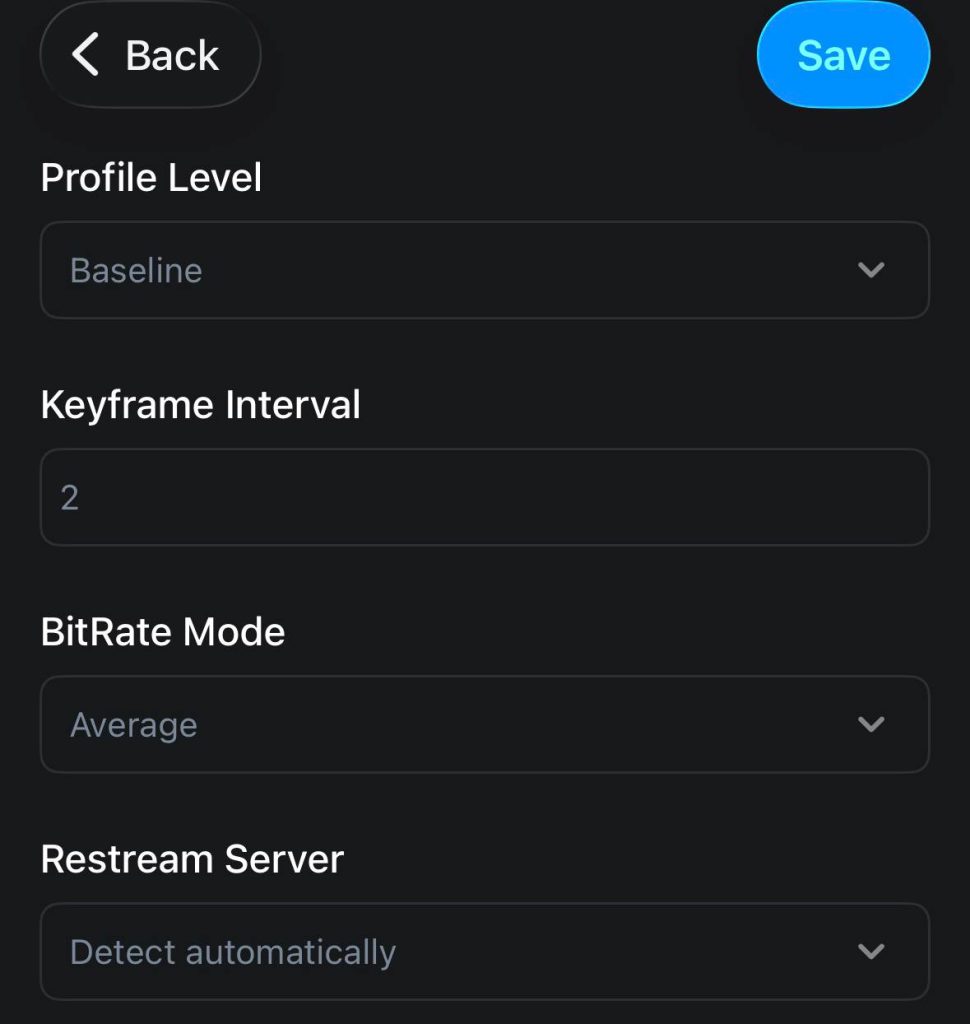
Advanced Settings screen with Keyframe Interval set to 2, highlighted
Keyframe Interval must be 2 — check this every time.”

Step 6 — Go Live #

  1. Go back to the main Channel Settings screen.
  2. Next to FansyMe, find the switch that says Enable this stream. Turn it ON (it turns green).
  3. Tap the ✓ checkmark button at the top right.
  4. Start your stream from the main screen.
  5. Check your FansyMe page. Make sure it shows you are live and video is playing (not just sound).
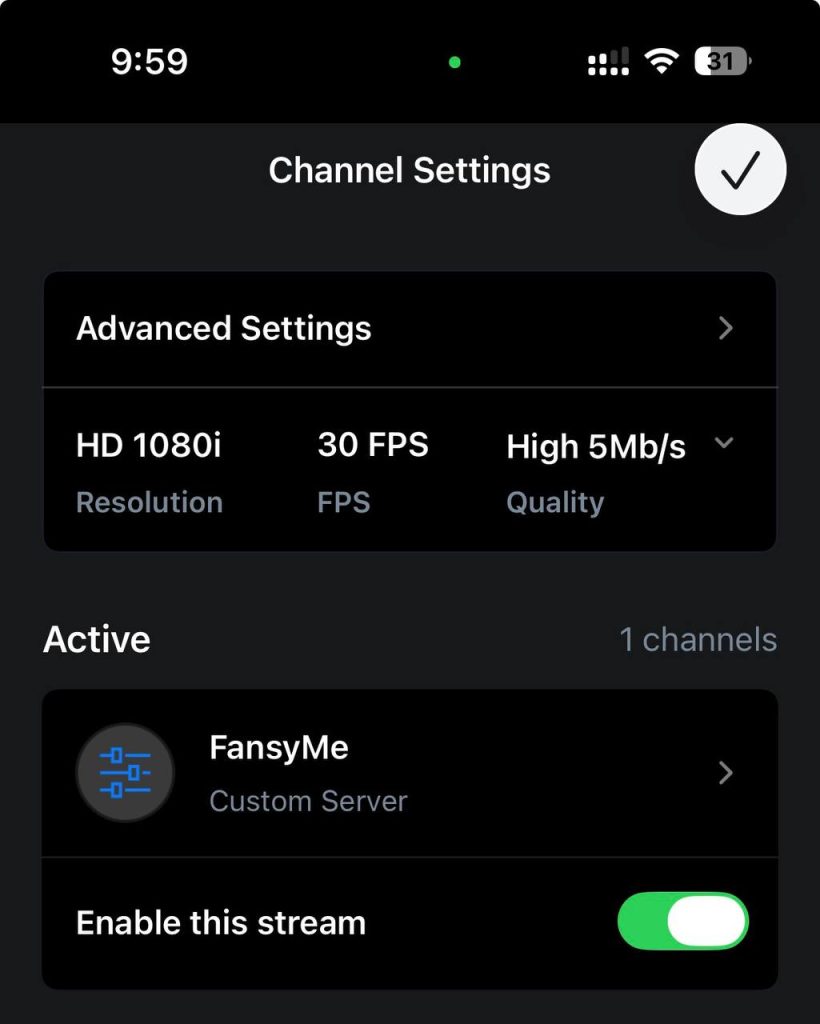
Enable this stream toggle switched on for FansyMe channel
Turn the switch green to enable FansyMe.

Want to Stream to More Than One Site at the Same Time? #

You can repeat Step 3 for other sites too (like Chaturbate, CamSoda, BongaCams, Cam4, Streamate). Turn on Enable this stream for each one you want. SplitCam will send your video to all of them at the same time.
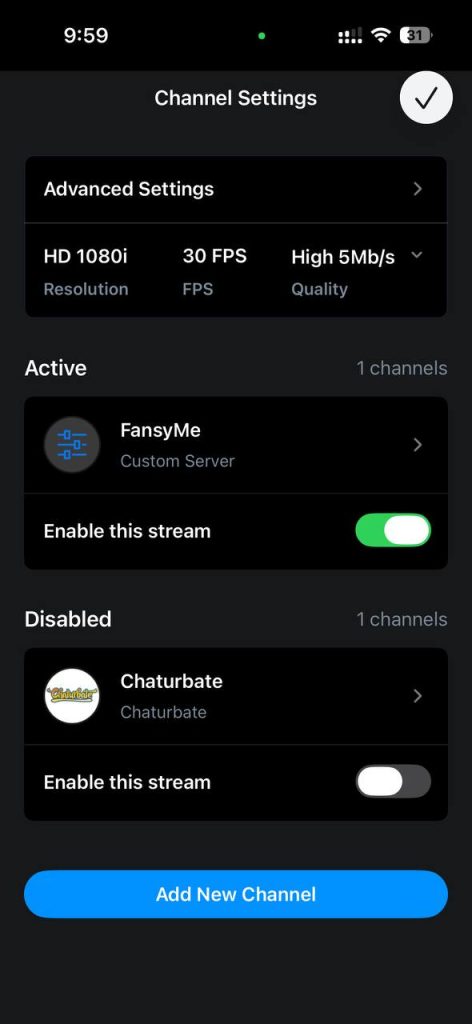
Channel Settings screen with one active and one disabled channel
You can add and enable more than one platform at once.

If Something Goes Wrong #

  • Stream won’t connect: Check that you copied the Stream URL and Stream Key correctly. No extra spaces.
  • Connects, but no video shows: Check the Keyframe Interval — it must be 2.
  • Video is choppy or freezing: Lower the Quality number, or connect to Wi-Fi instead of mobile data.
  • App disconnects while streaming: Plug your phone into a charger and turn off battery-saver mode before you go live.

Was this helpful?
Still stuck? How can we help?

How can we help?

Updated on July 19, 2026
How to Start Live Streaming / Multistream (Desktop)Private Video and Voice Calls
Table of Contents
  • Step 1 — Get the App
  • Step 2 — Get Your FansyMe Stream Info
  • Step 3 — Add FansyMe Inside SplitCam
  • Step 4 — Set Your Video Quality
  • Step 5 — One Very Important Setting
  • Step 6 — Go Live
  • Want to Stream to More Than One Site at the Same Time?
  • If Something Goes Wrong
  • Terms & Services
  • Privacy Policy
  • Cookies Policy
  • Imprint
  • Contact Us
  • Help & Support
  • Back to FansyMe
  • English
    • Deutsch (German)